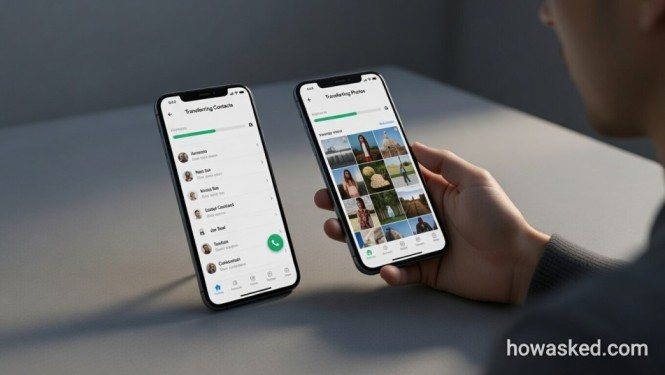
How to Transfer Data from Android to iPhone Seamlessly
The moment has arrived. You’re holding a sleek new iPhone, the culmination of anticipation and perhaps a bit of curiosity about the “other side.” But as you power it on, a familiar anxiety creeps in: what about your digital life—the thousands of photos, the vital text threads, the meticulously organized contacts—still trapped on your Android device?
Switching ecosystems has historically felt like moving to a new country without a passport. However, in 2026, the process is less about brute force and more about strategic migration. With the right roadmap, how to transfer data from Android to iPhone becomes a smooth, almost elegant process. This guide from howasked.com serves as your definitive playbook, covering everything from Apple’s official tools to advanced solutions for those who’ve already set up their device.
Why Transferring Data from Android to iPhone Matters
The shift from Android to iOS is not just a hardware swap—it’s an ecosystem change. Messages, photos, and app data are often tied to platform-specific services. Without a proper transfer method, users risk losing years of memories or work data. Understanding how to transfer data from Android to iPhone is essential for:
-
Seamless daily workflow: Contacts, calendars, and emails sync automatically.
-
Preserving memories: Photos and videos retain quality and metadata.
-
App continuity: Some apps allow data migration; others may need reinstallation.
-
Security and encryption compliance: iOS uses robust encryption; improper transfer can compromise data integrity.
Prerequisites for a Smooth Android to iPhone Transfer
Before initiating the transfer, ensure the following:
-
Fully charged devices: Both devices should have at least 50% battery.
-
Stable Wi-Fi connection: Move to iOS relies on Wi-Fi to transfer large files.
-
Updated OS versions: Android 5.0+ and iOS 15+ recommended.
-
Enough storage on iPhone: The iPhone must have sufficient free space.
-
Apple ID setup: Log in to your Apple account to enable iCloud services.
1: Preparing Your Android Device
1. Backup Your Data:
Even if you plan to transfer everything, a local or cloud backup is crucial in case of transfer errors. Use Google Drive or export contacts to a VCF file.
2. Install Move to iOS App:
Available on the Google Play Store, Move to iOS facilitates the secure migration of data. Ensure you have the latest version installed.
Pro Tip: Disable battery optimization or background restrictions for Move to iOS to prevent interruptions.
2: Setting Up Your iPhone for Transfer
-
Power on your iPhone and follow the on-screen setup prompts.
-
Select “Move Data from Android” when reaching the Apps & Data screen.
-
Connect to Wi-Fi: Both devices must be on the same network.
Apple generates a unique six- or ten-digit code to authorize the connection. Enter this code on your Android device to initiate a secure peer-to-peer transfer.
3: Choosing What to Transfer
The Move to iOS app lets you select:
-
Contacts
-
Message history (SMS & MMS)
-
Photos and videos
-
Web bookmarks
-
Mail accounts
-
Calendars
-
Free apps (linked in the App Store)
Pro Tip: Large media libraries may take longer to transfer. If time is limited, prioritize contacts, messages, and essential media first.
4: Executing the Transfer
Once selections are made:
-
Tap Next on the Android device to begin transferring.
-
Keep both devices close together and avoid using either device during the process.
-
Monitor progress; the transfer time depends on the data volume.
Common Issue: Transfer stalls or fails due to network interference. Resetting Wi-Fi and retrying often resolves the issue.
5: Post-Transfer Setup on iPhone
After the transfer:
-
Review your contacts and messages to confirm accuracy.
-
Download apps that were transferred as placeholders in the App Store.
-
Sync media files that didn’t transfer via iCloud Photos or manual import.
-
Set up Apple Pay, Face ID, and other security features.
Pro Tip: Enable iCloud Backup to automatically preserve future data, minimizing migration headaches.
Alternative Methods for Data Transfer
While Move to iOS is the official route, other methods can be useful:
Using Cloud Services
-
Google Photos: Upload images from Android and install Google Photos on iPhone to sync.
-
Google Drive: Transfer documents and media manually.
-
Dropbox/OneDrive: Useful for large files that exceed Move to iOS limits.
Manual Transfer via Computer
-
Connect Android to a PC and copy files to a folder.
-
Use iTunes or Finder to sync files to iPhone.
-
This is ideal for selective media transfer and app documents.
Third-Party Apps
Apps like AnyTrans or iMobie PhoneTrans provide advanced features like WhatsApp chat migration. Always verify security and reviews before using third-party solutions.
Troubleshooting Common Transfer Errors
-
Code Not Accepted: Ensure both devices are on the same Wi-Fi network.
-
Incomplete Media Transfer: Check storage on iPhone and retry for large files.
-
App Data Missing: Not all Android apps have iOS versions; manual setup may be required.
-
Connectivity Interruptions: Restart both devices and reconnect to Wi-Fi.
Pro Tip: If errors persist, transferring data in smaller batches can prevent crashes.
Ensuring a Smooth Transition to iOS
After migrating, consider:
-
Customizing iPhone settings to match previous Android preferences.
-
Exploring iOS alternatives for favorite Android apps.
-
Enabling iCloud Keychain to securely store passwords.
-
Syncing subscriptions such as email, streaming, or cloud storage.
The goal is not just moving files but creating an optimized, fully functional iPhone environment.
Frequently Asked Questions (FAQ)
1. Can I transfer all apps from Android to iPhone?
Not all Android apps have iOS versions. Move to iOS can suggest free alternatives or download compatible versions, but paid apps or certain app data may require manual setup.
2. How long does the transfer take?
Transfer time depends on the amount of data. Contacts and messages may take a few minutes, while large photo/video libraries can take over an hour. Using a strong Wi-Fi connection is crucial.
3. Can I transfer WhatsApp messages?
WhatsApp chats require a separate migration process. You can use Move to iOS for limited data or third-party tools like iMobie AnyTrans for full chat migration.
4. What if my transfer fails midway?
Restart both devices, ensure enough iPhone storage, and reconnect to Wi-Fi. Sometimes transferring data in smaller batches reduces errors.
5. Is it safe to use third-party apps for migration?
Yes, but only reputable apps with strong reviews. Avoid unknown sources to prevent data loss or privacy risks.
Switching from Android to iPhone doesn’t have to be stressful. By understanding how to transfer data from Android to iPhone, preparing devices properly, and using the official or alternative methods strategically, users can preserve contacts, messages, media, and essential app data seamlessly. Following these steps ensures a smooth transition, allowing you to enjoy iOS without compromise.