How to Save Battery on iPhone: 25 Proven Tips That Actually Work in 2026
If you’re constantly searching for how to save battery on iPhone, you’re not alone. Even the most advanced iPhones can struggle to last a full day under heavy usage—especially with 5G, high refresh rate displays, and background apps running silently.
The truth is simple: battery drain is rarely caused by one single issue. It’s usually a combination of settings, habits, and system-level features working against you.
In this deep-dive guide, I’ll break down exactly how to save battery on iPhone using proven, real-world strategies that work in 2026—without crippling your device’s performance.
Why Your iPhone Battery Drains So Fast (The Hidden Reasons)
Before learning how to save battery on iPhone, you must understand what’s draining it.
Modern iPhones are incredibly powerful. Features like ProMotion (120Hz display), Always-On Display, background app refresh, and constant location tracking are convenience tools—but they consume energy continuously.
Even Apple’s official support documentation from Apple Inc. confirms that display brightness, wireless signals, and background processes are the primary battery consumers.
Now let’s fix them properly.
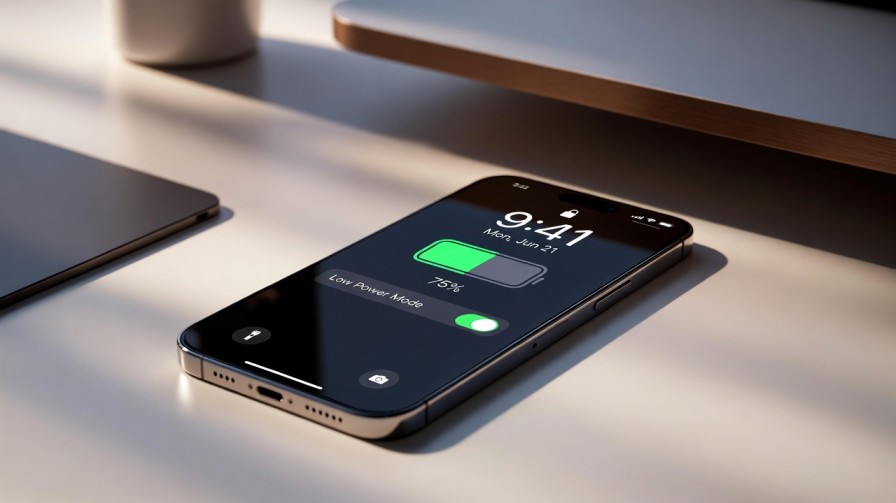
1. Turn On Low Power Mode (Strategic Usage)
Low Power Mode isn’t just for emergencies. It temporarily reduces background activity, mail fetch, visual effects, and automatic downloads.
How to enable it:
-
Settings → Battery → Low Power Mode
-
Or add it to Control Center for quick access
Pro Tip: Use Low Power Mode when your battery drops below 40%, not 10%. Early activation prevents aggressive drain later.
2. Reduce Screen Brightness and Disable Auto-Brightness Conflicts
Your display consumes more battery than any other component.
Manual Optimization
-
Settings → Display & Brightness
-
Reduce brightness to 40–60% indoors
Disable True Tone (Optional)
True Tone constantly adjusts color temperature. Turning it off can slightly improve battery life.
3. Lower Refresh Rate on Pro Models (Major Impact)
If you use a Pro iPhone with ProMotion (120Hz), that smooth scrolling costs battery life.
Go to:
-
Settings → Accessibility → Motion → Limit Frame Rate
This locks refresh rate to 60Hz, which can significantly reduce power consumption.
4. Turn Off Always-On Display (iPhone Pro Models)
Always-On Display is convenient—but it constantly draws power.
Disable it:
-
Settings → Display & Brightness → Always On → Off
If you’re serious about learning how to save battery on iPhone, this is one of the biggest wins.
5. Control 5G Usage (Huge Drain in Weak Signal Areas)
5G consumes significantly more battery than LTE, especially in areas with unstable signals.
Change settings:
-
Settings → Cellular → Cellular Data Options → Voice & Data
-
Select LTE or 5G Auto instead of 5G On
This alone can add hours of battery life.
6. Disable Background App Refresh (Selective Control)
Many apps refresh content even when you’re not using them.
Go to:
-
Settings → General → Background App Refresh
Turn it off entirely or disable it for non-essential apps.
Social media apps are often the biggest offenders.
7. Optimize Location Services (Silent Battery Killer)
Location tracking is one of the most underestimated drains.
Navigate to:
-
Settings → Privacy & Security → Location Services
For most apps, choose:
-
“While Using the App”
-
Or “Never”
Also scroll to System Services and disable:
-
Significant Locations (if not needed)
-
Location-Based Alerts
8. Disable Push Mail and Fetch Less Frequently
Push email constantly checks servers for updates.
Switch to manual fetch:
-
Settings → Mail → Accounts → Fetch New Data
-
Set Fetch to every 30 minutes or manually
This is especially effective for multiple email accounts.
9. Turn Off AirDrop, Bluetooth & Wi-Fi When Not Needed
Wireless radios constantly scan for connections.
Use Control Center wisely:
-
Turn off AirDrop visibility
-
Disable Bluetooth if unused
-
Turn off Wi-Fi in weak network areas
10. Use Dark Mode (OLED Advantage)
If your iPhone has an OLED display (iPhone X and later), Dark Mode can reduce power usage.
Enable it:
-
Settings → Display & Brightness → Dark
Black pixels use less energy on OLED panels.
11. Check Battery Usage Analytics
Want to truly master how to save battery on iPhone?
Go to:
-
Settings → Battery
Review:
-
Battery Usage by App
-
Screen On vs Screen Off activity
Delete or limit apps consuming excessive background energy.
12. Keep iOS Updated (Bug Fixes Matter)
Battery drain can sometimes be caused by software bugs.
Apple regularly releases updates that improve energy efficiency. Always install stable iOS versions.
Official update notes are published on Apple’s website.
13. Disable Haptic Feedback & Keyboard Vibrations
Subtle vibrations drain power over time.
Turn off:
-
Settings → Sounds & Haptics → System Haptics
14. Limit Widgets and Live Activities
Lock screen widgets and Live Activities constantly refresh data.
Remove unnecessary widgets:
-
Press and hold Lock Screen → Customize
Minimalism equals longevity.
15. Avoid Extreme Temperatures
According to Apple Inc., iPhones operate best between 0° to 35°C (32° to 95°F).
Heat permanently degrades battery health. Avoid charging under pillows or inside hot cars.
16. Enable Optimized Battery Charging
This feature slows charging past 80% overnight to protect battery lifespan.
Settings → Battery → Battery Health & Charging → Optimized Battery Charging
Long-term health equals better daily endurance.
17. Reset All Settings (If Drain Is Abnormal)
If battery drain suddenly spikes after an update, try:
-
Settings → General → Transfer or Reset iPhone → Reset → Reset All Settings
This won’t erase data but can fix configuration issues.
18. Replace Old Batteries (If Health Below 80%)
Go to:
-
Settings → Battery → Battery Health
If Maximum Capacity is below 80%, battery replacement may be necessary.
Apple-certified replacements restore full performance.
19. Disable Unnecessary Notifications
Each notification lights up your screen.
Reduce them:
-
Settings → Notifications
-
Disable for non-essential apps
20. Turn Off Raise to Wake
Settings → Display & Brightness → Raise to Wake → Off
Small change, noticeable improvement.
How to Save Battery on iPhone Long-Term (The Smart Strategy)
Saving battery isn’t about disabling everything. It’s about balance.
Here’s the sustainable approach:
-
Control display settings
-
Manage connectivity
-
Limit background processes
-
Maintain battery health
-
Monitor usage monthly
Think of it like managing finances—you cut unnecessary expenses without sacrificing essential investments.
21. Reduce Auto-Lock Time to Save Battery on iPhone Faster
If you truly want to master how to save battery on iPhone, shortening your screen timeout is one of the simplest yet most overlooked fixes.
Your display is the single biggest battery consumer. The longer it stays on, the more power it drains.
How to Adjust Auto-Lock:
-
Go to Settings
-
Tap Display & Brightness
-
Select Auto-Lock
-
Choose 30 Seconds
Pro Insight: Even reducing screen-on time by 1–2 minutes per session can significantly improve daily battery endurance.
22. Disable “Hey Siri” Always-Listening Feature
Many users forget that Siri’s voice detection is constantly running in the background. While optimized, it still consumes power.
If you’re serious about learning how to save battery on iPhone efficiently, disabling continuous voice detection can help.
How to Turn It Off:
-
Open Settings
-
Tap Siri & Search
-
Disable Listen for “Hey Siri”
You can still activate Siri manually using the side button, preserving convenience without constant microphone monitoring.
23. Turn Off iPhone Analytics & Background Data Sharing
Apple collects anonymous analytics data to improve iOS performance. While minimal, this background activity contributes to battery usage.
Optimizing system-level processes is a smart step in how to save battery on iPhone long-term.
Disable Analytics Sharing:
-
Go to Settings
-
Tap Privacy & Security
-
Select Analytics & Improvements
-
Turn off all sharing options
This reduces silent background transmissions and slightly improves battery efficiency.
24. Avoid Live Wallpapers and Motion Effects
Animated wallpapers may look impressive, but they use GPU resources continuously.
For users exploring how to save battery on iPhone without sacrificing core functionality, switching to static wallpapers is a practical win.
How to Change to a Static Wallpaper:
-
Open Settings
-
Tap Wallpaper
-
Choose a Still image instead of Live or Dynamic
Also consider reducing motion:
-
Settings → Accessibility → Motion → Enable Reduce Motion
Less animation equals less power consumption.
25. Disable iCloud Photo Sync on Cellular Data
Automatic photo uploads over cellular networks consume both data and battery — especially when capturing videos in high resolution.
If you’re optimizing how to save battery on iPhone while traveling or outdoors, this setting is critical.
Turn Off Cellular Photo Sync:
-
Go to Settings
-
Tap Photos
-
Select Cellular Data
-
Disable Cellular Data
Photos will still sync over Wi-Fi, preserving battery life when you’re away from charging.
Frequently Asked Questions
Does closing apps save battery?
Not necessarily. Force closing apps repeatedly can actually use more power when reopening them.
Does Dark Mode really help?
Yes, especially on OLED displays. Black pixels consume less energy.
Is charging overnight bad?
Not if Optimized Battery Charging is enabled.
How to Save Battery on iPhone Without Sacrificing Performance
Learning how to save battery on iPhone is about smart optimization—not extreme restriction.
You don’t need to disable every feature. Instead, control high-impact settings like 5G, refresh rate, Always-On Display, and background app refresh.
When configured properly, most iPhones can easily last a full day—even with heavy usage.
Master these strategies, and your iPhone battery won’t control your day anymore.