How to Remove Malware from PC Without Antivirus: A Complete Expert Guide
Malware infections are a silent threat lurking behind every download, email attachment, or sketchy website. While antivirus software is the traditional line of defense, there are advanced methods to detect and remove malicious software manually. Mastering these techniques is crucial, especially when you cannot rely on third-party security tools.
Manual malware removal is not only about deleting suspicious files—it’s a strategic process that ensures your system is cleansed without compromising your personal data or system stability. This guide will break down the process into actionable steps, giving you complete control over your PC’s security.
Understanding Malware and Its Risks
Before diving into removal, it’s critical to understand what malware is and why relying solely on antivirus is risky. Malware, short for malicious software, can include viruses, trojans, ransomware, spyware, and adware. These programs often operate covertly, stealing data, slowing system performance, or encrypting files for ransom.
Tip: Malware often disguises itself as legitimate processes. Knowing how to identify unusual system behavior is your first line of defense. Look for:
-
Unexpected pop-ups or ads
-
Slow system performance or crashes
-
Unknown processes in Task Manager
-
Changes to browser settings or homepage
Understanding these symptoms sets the stage for precise, manual removal.
Isolate Your PC
Isolation prevents malware from spreading or communicating with external servers. Disconnect from the internet immediately. If you suspect ransomware, avoid opening any files or programs that could trigger encryption.
Pro Tip: Use Safe Mode (with Networking disabled) for a controlled environment. Safe Mode loads only essential system drivers, making malware less likely to execute.
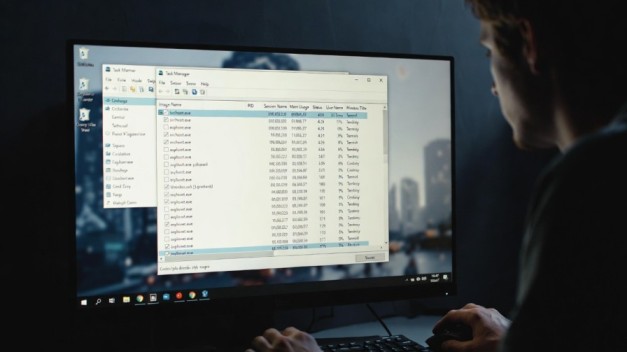
Analyze Active Processes
The Windows Task Manager and built-in utilities like Resource Monitor can reveal suspicious activity.
Instructions:
-
Press
Ctrl + Shift + Escto open Task Manager. -
Sort processes by CPU and memory usage.
-
Identify unknown or high-resource programs.
Advanced Tip: Use Windows PowerShell or Command Prompt commands like tasklist to export and review running processes. Cross-check unfamiliar names online—many malware strains are documented in cybersecurity reports.
Clean Startup Programs
Malware often embeds itself into startup sequences to launch on boot. Removing it from these lists prevents reinfection.
Instructions:
-
Press
Windows + R, typemsconfig, and open System Configuration. -
Navigate to the Startup tab.
-
Disable unknown or suspicious entries.
-
For Windows 10/11, open Task Manager > Startup for granular control.
Pro Tip: Do not disable essential system processes; if unsure, research the exact process name before disabling.
Remove Malware Files Manually
Manual file removal is the core of antivirus-free cleanup. Focus on typical malware hiding spots:
-
C:\Windows\Temp -
C:\Users\[YourUsername]\AppData\Local\Temp -
C:\ProgramData
Instructions:
-
Enable Hidden Files from File Explorer options.
-
Search for recently modified suspicious files.
-
Right-click → Delete, or use
Shift + Deleteto bypass Recycle Bin.
Pro Tip: Malware often locks files in use. If deletion fails, boot into Safe Mode or use a Windows Recovery Environment to remove them.
Clean the Registry
Malware frequently alters the Windows Registry to maintain persistence. Improper edits can harm your system, so proceed with caution.
Instructions:
-
Press
Windows + R, typeregedit, and open the Registry Editor. -
Backup the registry (
File > Export) before changes. -
Navigate to:
-
HKEY_CURRENT_USER\Software -
HKEY_LOCAL_MACHINE\SOFTWARE\Microsoft\Windows\CurrentVersion\Run
-
-
Delete entries linked to suspicious applications.
Expert Insight: Only delete entries confirmed as malicious. Use online cybersecurity databases for cross-reference.
Browser Cleanup
Browsers are common malware targets. Hijackers can redirect traffic, inject ads, or track activity.
Steps for Cleanup:
-
Reset browser settings to default.
-
Remove unknown extensions.
-
Clear cache, cookies, and temporary internet files.
Pro Tip: Use chrome://settings/resetProfileSettings in Chrome or about:support > Refresh Firefox in Firefox for a clean reset.
Use Windows Built-In Security Tools
Even without third-party antivirus, Windows includes tools capable of detecting malware:
-
Windows Defender Offline Scan: Boots independently to catch rootkits and stubborn malware.
-
Windows Security (Virus & Threat Protection): Can scan specific files and folders.
Instructions:
-
Open Windows Security > Virus & Threat Protection.
-
Select Scan Options > Full Scan.
-
For offline threats, choose Windows Defender Offline Scan.
Monitor Network Activity
Malware may attempt to communicate externally. Use Windows’ built-in Resource Monitor or netstat commands to check active connections.
Pro Tip: Identify unknown outbound IP addresses and block them temporarily using the Windows Firewall. Persistent connections may indicate hidden malware requiring deeper system inspection.
Backup and System Restore
Before assuming complete safety, create a backup of essential files. Consider restoring the system to a previous clean state using System Restore.
Instructions:
-
Open
Control Panel > System > System Protection. -
Choose System Restore.
-
Select a restore point prior to infection.
This step ensures any remaining traces are neutralized without external software.
Prevent Future Infections
Manual removal is effective but prevention is superior. Adopt these practices:
-
Keep Windows and software updated.
-
Avoid downloading files from untrusted sources.
-
Regularly audit startup programs and installed apps.
-
Use limited accounts for daily tasks instead of Administrator.
Expert Insight: Combining vigilance with Windows’ built-in defenses often matches basic antivirus capabilities.
Frequently Asked Questions (FAQ)
1. Can I really remove malware without antivirus software?
Yes. By manually identifying suspicious files, cleaning startup programs, monitoring active processes, and using built-in Windows tools like Windows Defender Offline Scan, most malware can be removed without third-party antivirus software. However, extremely advanced threats may require professional assistance.
2. What built-in Windows tools help in malware removal?
Windows provides multiple tools for antivirus-free cleanup:
-
Task Manager / Resource Monitor – to spot suspicious processes
-
MSConfig / Startup settings – to disable malware persistence
-
Windows Defender Offline Scan – detects rootkits and hidden malware
-
System Restore – rolls back system to a clean state
3. How do I prevent reinfection after manual cleanup?
Preventive steps include:
-
Keeping Windows and apps updated
-
Avoiding suspicious downloads and links
-
Using standard user accounts instead of Administrator
-
Regularly monitoring startup programs and browser extensions
4. Is it safe to edit the Windows Registry to remove malware?
Yes, but only if you know exactly which entries are malicious. Always backup the registry before making changes. Deleting the wrong entries can destabilize your system.
5. Can malware hide even after manual removal?
Some advanced malware can hide in system files or network connections. Monitoring network activity, using offline scans, and checking startup programs regularly can help detect lingering threats.
6. When should I consider professional help?
If malware is encrypting files (ransomware), has disabled key system functions, or persists after multiple manual attempts, professional cybersecurity support is recommended.
Mastering the art of removing malware from a PC without antivirus empowers you to regain control over your system and data. By systematically isolating, analyzing, cleaning, and monitoring your PC, you can neutralize threats effectively while strengthening future defenses.
Remember: Knowledge of your system, cautious manual interventions, and consistent monitoring are key. For advanced threats, professional consultation may still be required—but the steps above cover the vast majority of infections.