How to Block Spam Emails in Gmail: 7 Proven Ways for Better Security
Email spam is no longer just a minor inconvenience. For many Gmail users, spam emails are a daily problem that wastes time, distracts focus, and—more importantly—creates serious security risks. From fake delivery notices to phishing attempts that look almost real, spam emails are becoming smarter every year.
If you are using Gmail on a new or existing account, learning how to block spam emails in Gmail properly is one of the best steps you can take to protect your inbox and your personal data. This guide is written for real people, not search engines. Every method shared here is practical, safe, and tested in everyday use.
What Are Spam Emails and Why Do They Exist?
Spam emails are unsolicited messages sent in bulk, usually with the goal of advertising, scamming, or tricking users into clicking links or sharing personal information. These emails often pretend to come from trusted companies, banks, online stores, or even Google itself.
Common types of spam emails include:
- Fake account security alerts
- Promotional emails from unknown websites
- Phishing emails asking you to “verify” information
- Scam emails offering prizes, refunds, or urgent warnings
Spam exists because it works. Even if only a small percentage of users click on these emails, spammers still profit. That is why protecting your Gmail inbox requires both smart tools and smart habits.
Why Blocking Spam Emails in Gmail Is Important
Blocking spam emails is not just about keeping your inbox clean. It directly affects your online safety and productivity.
Inbox Organization and Focus
A cluttered inbox makes it harder to find important emails from real people or services you trust. Reducing spam improves focus and saves time.
Email Security and Data Protection
Many spam emails contain malicious links or fake login pages. Clicking the wrong link can expose your Gmail account, passwords, or financial information.
Long-Term Spam Reduction
When you block and report spam correctly, Gmail learns from your actions. This improves spam detection not only for you but for millions of other users as well.
How Gmail Detects and Filters Spam Emails
Gmail uses advanced algorithms and machine learning to detect spam emails before they reach your inbox. It analyzes several factors, including:
- Sender reputation and email history
- Email content and formatting patterns
- User behavior, such as reporting spam
- Suspicious links, images, and attachments
Most spam emails are automatically sent to the Spam folder. However, some messages still get through, especially if they are new or cleverly written. That is where manual blocking and filters become essential.
7 Proven Ways to Block Spam Emails in Gmail
Below are the most effective and safe methods to block spam emails in Gmail, suitable for both desktop and mobile users.
1. Block the Sender Directly in Gmail
Blocking a sender is the fastest way to stop emails from a specific address.
How to Block a Sender on Desktop
- Open Gmail in your browser
- Open the spam email
- Click the three-dot menu in the top-right corner
- Select Block [Sender Name]
Once blocked, all future emails from that sender will automatically go to the Spam folder.
How to Block a Sender on Mobile
- Open the Gmail app
- Open the email you want to block
- Tap the three-dot menu
- Choose Block [Sender]
This method is simple and effective for repeat spam senders.
2. Report Emails as Spam (Help Gmail Learn)
Reporting spam is different from blocking. When you report an email as spam, you help Gmail improve its detection system.
When Should You Report Spam?
- The email is clearly fake or misleading
- The sender is unknown
- The message contains suspicious links or claims
How to Report Spam
- Open the email
- Click or tap the Report spam option
Gmail will move the email to the Spam folder and use it as feedback to improve filtering.
3. Create Gmail Filters to Stop Spam Automatically
Filters are one of Gmail’s most powerful features for long-term spam control.
Why Filters Are Effective
Filters allow you to automatically manage emails based on rules such as:
- Specific email addresses
- Keywords in the subject or body
- Repeated spam patterns
How to Create a Filter in Gmail (Desktop)
- Open Gmail on desktop
- Click the arrow in the search bar
- Enter filter criteria (sender, words, subject)
- Click Create filter
- Choose an action such as Delete, Mark as spam, or Skip inbox
- Click Create filter again
Filters work quietly in the background and are ideal for stopping recurring spam.
4. Use the Spam Folder Wisely
Many users ignore the Spam folder, but it plays an important role in email security.
Why You Should Check It Occasionally
- Legitimate emails can sometimes be misclassified
- Reviewing spam helps you understand common scam patterns
If you find a legitimate email in spam, mark it as Not spam to train Gmail correctly.
5. Be Careful with Unsubscribe Links (Unsubscribe Myths)
Not all unsubscribe links are safe.
Common Unsubscribe Myths
- Myth: Clicking unsubscribe always stops spam
- Reality: Fake unsubscribe links can confirm your email is active
When Is It Safe to Unsubscribe?
- Emails from brands you recognize
- Newsletters you signed up for
- Trusted companies with official domains
For unknown senders, blocking or reporting spam is safer than unsubscribing.
6. What NOT to Click in Spam Emails
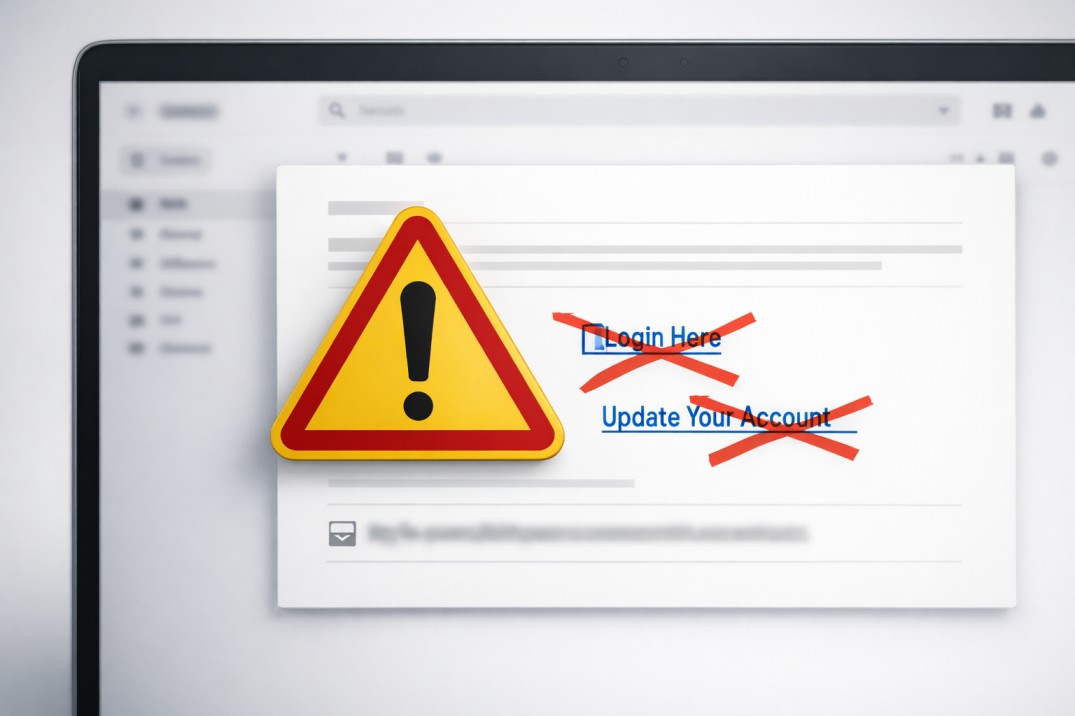
Knowing what to avoid is critical for Gmail security.
Never click:
- Urgent account warnings asking for login
- Attachments from unknown senders
- Links promising refunds, prizes, or deliveries you didn’t order
- Buttons that redirect to login pages
If an email claims to be from a company, visit the website directly instead of clicking links inside the email.
7. Build Smart Email Habits to Reduce Spam
Blocking spam works best when combined with good habits.
Use a Secondary Email Address
Use one email for sign-ups and another for important communication.
Avoid Sharing Your Email Publicly
Posting your email on forums or comment sections increases spam risk.
Never Reply to Spam Emails
Replies confirm that your email address is active.
Gmail Spam Protection: Desktop vs Mobile
Gmail offers strong spam protection on both platforms, but there are differences.
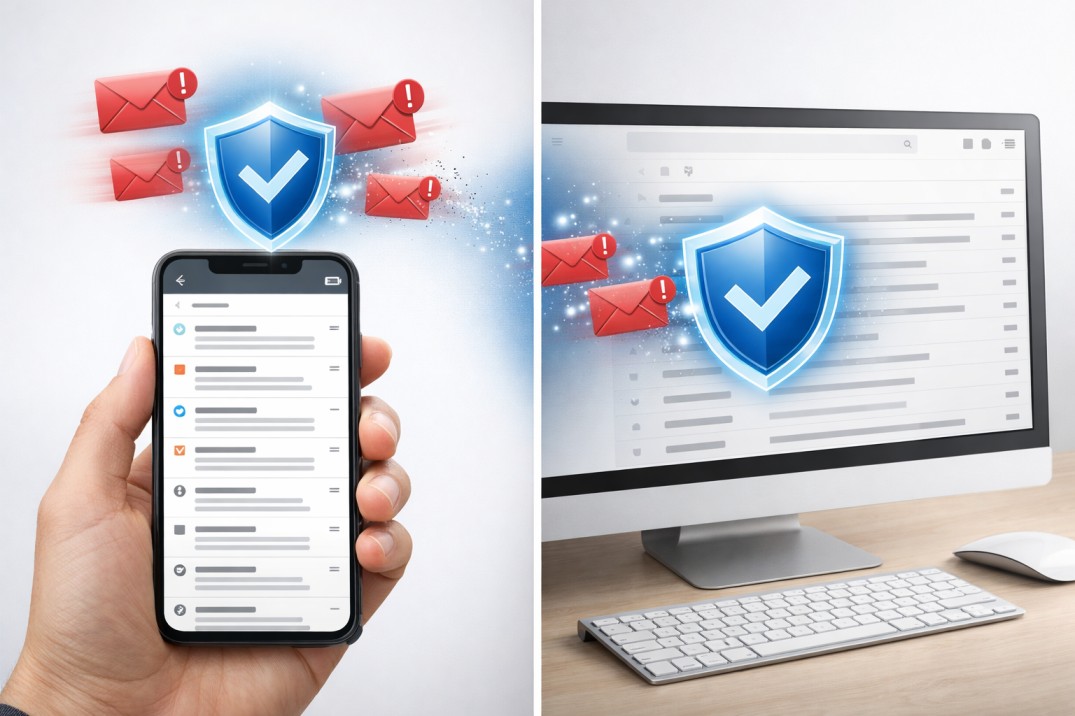
- Mobile apps are ideal for quick blocking and reporting
- Desktop allows advanced filters and better inbox management
Using both together provides the best protection.
Is Gmail Secure Enough for Professional and Business Use?
Yes. Gmail is widely used by professionals, freelancers, and businesses worldwide. Its built-in spam protection, regular security updates, and optional two-step verification make it one of the safest email platforms available.
However, user awareness is just as important as technology. Understanding how spam works and how to block it properly significantly improves email safety.
Frequently Asked Questions (FAQ)
1. Can blocking a sender completely stop spam emails?
Blocking stops emails from a specific address, but spammers may use multiple addresses. Filters and reporting help reduce spam further.
2. Is it safe to open spam emails without clicking anything?
Opening an email is usually safe, but links, images, and attachments should not be clicked.
3. Why do spam emails still reach my inbox?
Some spam emails are designed to bypass filters. Reporting them helps Gmail improve detection.
4. Does Gmail delete spam emails automatically?
Yes. Emails in the Spam folder are automatically deleted after 30 days.
5. Can spam emails hack my Gmail account directly?
Spam emails cannot hack your account by themselves, but clicking malicious links can lead to account compromise.
Learning how to block spam emails in Gmail is an essential digital skill. Gmail already offers powerful protection, but using its features correctly makes a noticeable difference.
By blocking senders, reporting spam, using filters, avoiding risky clicks, and building smart email habits, you can maintain a cleaner, safer inbox. Whether you use Gmail on mobile or desktop, these proven methods help protect your privacy and improve your daily email experience.
A secure inbox is not just about fewer emails—it’s about peace of mind and control over your digital life.