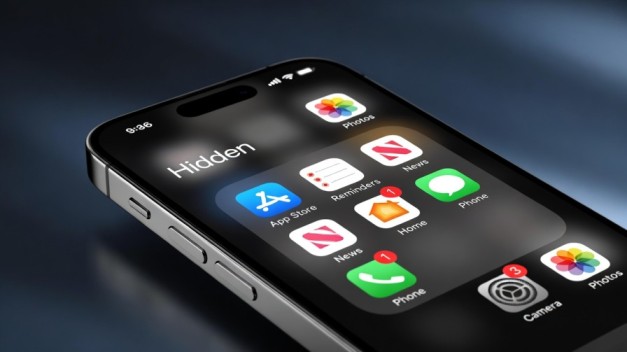
How to Hide Apps on iPhone: The Definitive Guide for Privacy and Productivity
iPhones are designed with both simplicity and sophistication in mind, yet hiding apps isn’t immediately intuitive. Whether you want to declutter your home screen, protect sensitive data, or manage distractions, understanding the built-in and advanced methods to hide apps on iPhone is crucial.
In this guide, we will break down every approach—from native iOS features to strategic workarounds—so you can control your app visibility without compromising functionality.
Why Hiding Apps Matters on iPhone
Hiding apps is more than just cosmetic. It serves multiple purposes:
-
Privacy Protection: Prevents casual snooping or accidental exposure of personal apps.
-
Productivity Management: Reduces distractions by removing attention-grabbing apps from your home screen.
-
Parental Control: Helps control what children can see or access on shared devices.
-
Organizational Clarity: Streamlines your home screen for quick access to essential apps.
iOS does not allow complete app invisibility in the traditional sense, but clever use of built-in tools can achieve near-total discretion.
Method 1: Using Screen Time Restrictions
iOS Screen Time offers a subtle yet powerful way to hide apps by restricting access. Here’s how:
Step-by-Step
-
Open Settings → Screen Time.
-
Tap App Limits → Add Limit.
-
Select the app category or individual app you want to hide.
-
Set a minimal time limit (e.g., 1 minute) and enable Block at End of Limit.
Pro Tip: Apps won’t appear on the home screen for practical usage once blocked—perfect for hiding social media or games.
Limitations:
-
Works best for apps that can be categorized.
-
Completely hiding system apps may require more complex steps.
Method 2: Removing Apps from Home Screen (App Library)
With iOS 14 and later, Apple introduced the App Library, which allows apps to exist without cluttering the home screen.
Steps to Hide via App Library
-
Long-press the app icon on your home screen.
-
Tap Remove App → Remove from Home Screen.
-
The app remains accessible via App Library (swipe left past your last home screen page).
Advantages:
-
Keeps apps functional but discreet.
-
No need for third-party tools.
Use Case: Ideal for utility apps, banking apps, or rarely used apps.
Method 3: Hiding Built-in Apple Apps
Some Apple apps can’t be deleted but can be hidden via home screen removal or Screen Time restrictions.
Steps
-
Navigate to Settings → Screen Time → Content & Privacy Restrictions.
-
Enable Content & Privacy Restrictions.
-
Tap Allowed Apps and toggle off apps like Mail, Safari, or FaceTime.
Pro Tip: This method ensures system apps are not visible or accidentally opened.
Method 4: Using Folders Strategically
Folders can obscure apps subtly:
-
Long-press and drag the app into a folder.
-
Place the app on the second or third page of the folder.
-
Name the folder ambiguously (e.g., “Utilities” or “Extras”).
Effectiveness: While not true hiding, it reduces accidental visibility.
Method 5: Advanced Workarounds
1. Guided Access
-
Enables a single-app focus mode and hides other apps during use.
-
Perfect for lending your iPhone temporarily.
2. Using Shortcuts
-
Create custom shortcuts to launch apps without revealing them on the home screen.
-
Requires familiarity with Apple Shortcuts app.
Caution: Third-party apps claiming to hide apps completely often require jailbreaking, which risks security and warranty.
Maintaining Hidden Apps Securely
-
Regularly update iOS to ensure hidden apps remain compatible.
-
Use strong passcodes for apps with sensitive content.
-
Monitor app permissions to prevent background exposure.
-
Leverage Screen Time logs to track hidden app usage.
Common Questions
Q: Can you completely hide apps on iPhone without Screen Time?
A: No. Apple does not support full invisibility without using Screen Time or the App Library.
Q: Are hidden apps still searchable?
A: Yes, apps in App Library or restricted via Screen Time can be searched via Spotlight.
Q: Will hiding apps affect app notifications?
A: Removing apps from the home screen does not block notifications. You may need to adjust Notification Settings.
Frequently Asked Questions (FAQ) About Hiding Apps on iPhone
Q: Can I completely hide apps on iPhone without Screen Time?
A: No. Apple does not allow full invisibility of apps by default. You can hide apps from the home screen using the App Library, or restrict them via Screen Time, but they remain searchable through Spotlight.
Q: Will hidden apps still send notifications?
A: Yes. Removing an app from the home screen does not disable notifications. To fully mute alerts, go to Settings → Notifications and adjust the notification settings for each app.
Q: Can built-in Apple apps like Safari or Mail be hidden?
A: Partially. You can hide some system apps using Screen Time → Content & Privacy Restrictions → Allowed Apps, but core apps cannot be completely removed unless restricted.
Q: Is it safe to use third-party apps to hide apps?
A: Caution is advised. Most third-party apps require jailbreaking, which compromises device security and voids warranties. Apple’s native methods are the safest approach.
Q: Can hidden apps be accessed via Spotlight search?
A: Yes. Apps hidden from the home screen or restricted via Screen Time still appear in Spotlight search, though usage may be limited if blocked.
Q: How can I hide apps for parental control?
A: Use Screen Time → App Limits to restrict access to specific apps or categories. Combine with Content & Privacy Restrictions to prevent changes to settings.
Q: Will hiding apps affect app functionality?
A: Generally, no. Apps hidden via the App Library or Screen Time remain fully functional when accessed directly or via shortcuts. Notifications may still appear unless manually muted.
Hiding apps on iPhone is both an art and a strategy. Whether for privacy, organization, or parental control, iOS provides multiple tools that, when combined thoughtfully, offer effective discretion. Using Screen Time restrictions, App Library, and strategic folder management, you can declutter your device while keeping essential apps accessible.
By mastering these methods, you not only regain control over your home screen but also create a more productive and private iPhone experience.