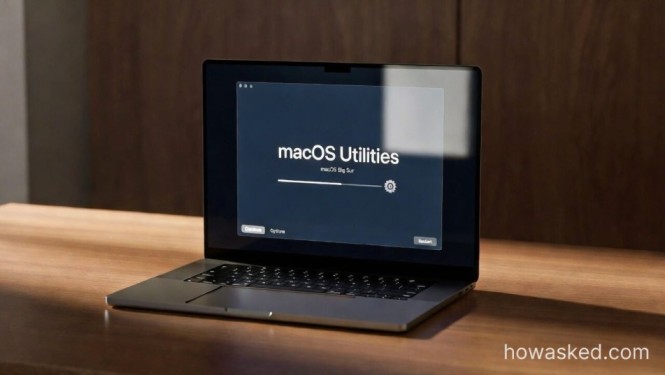
How to Reset Mac Without Losing Data: The Complete 2026 Safe Reset Guide
How to reset Mac without losing data is a question every Mac user asks when facing system slowdowns, crashes, or update errors. Losing photos, documents, and important apps can be catastrophic — but Apple has built macOS with multiple safe methods to reset your Mac while keeping your personal files intact.
In this guide, you’ll learn step-by-step how to reset Mac without losing data on both Intel and Apple Silicon Macs. From Recovery Mode to Time Machine backups and the Erase Assistant feature, this article covers every professional method for a risk-free reset.
Why You Might Need to Reset Your Mac (Without Losing Data)
Resetting a Mac isn’t always about selling it.
Sometimes it’s about restoring performance, removing malware, fixing update errors, or solving persistent crashes. According to official documentation from Apple Inc., many system-level issues stem from corrupted settings, outdated extensions, or incomplete updates — not hardware failure.
A reset can:
-
Eliminate software conflicts
-
Remove hidden malware
-
Clear corrupted system caches
-
Improve boot speed
-
Fix failed macOS updates
But a full factory wipe isn’t always necessary.
Understanding the type of reset you need is the first critical step.
How to Reset Mac Without Losing Data: Step-by-Step Strategy
Resetting safely is about method, not luck.
There are three professional-grade approaches:
-
Reset system settings only
-
Reinstall macOS without erasing disk
-
Use Erase Assistant (Apple Silicon method)
Let’s examine each.
Method 1: Reset System Settings Without Erasing Files
Best for: Minor glitches, performance drops, network issues.
This method resets system preferences but keeps personal data untouched.
1: Back Up First (Always)
Even though we aim to keep data, professionals never skip backups.
Use Time Machine:
-
Connect an external drive
-
Open System Settings
-
Go to Time Machine
-
Select Backup Disk
Time Machine is macOS’s built-in backup utility introduced with Mac OS X Leopard. It creates incremental backups of files, applications, and system settings.
Think of it as your insurance policy.
2: Reset NVRAM / PRAM (Intel Macs Only)
If you’re using an Intel-based Mac:
-
Shut down
-
Turn on and immediately hold:
-
Option + Command + P + R
-
-
Hold for 20 seconds
This clears corrupted system memory settings without affecting files.
3: Reset SMC (For Power & Hardware Issues)
System Management Controller controls battery, fans, and sleep behavior.
Resetting it often resolves overheating and charging issues — again, no file deletion.
Method 2: Reinstall macOS Without Erasing Data
This is the most powerful and safest solution for serious software issues.
You reinstall the operating system while keeping user files intact.
Works on:
-
Intel Macs
-
M1/M2/M3 Macs
Step-by-Step Guide
-
Shut down your Mac
-
Boot into Recovery Mode
Intel Mac:
Hold Command + R during startup
Apple Silicon:
Hold Power button until “Options” appears
-
Select “Reinstall macOS”
-
Choose your current disk
-
Follow installation steps
The installer replaces system files but leaves:
-
Documents
-
Photos
-
Videos
-
Applications
-
User accounts
untouched.
Apple confirms this method in its official macOS Recovery documentation.
This is the most recommended solution when learning how to reset Mac without losing data.
Method 3: Erase Assistant (Apple Silicon & macOS Monterey+)
With macOS Monterey and later, Apple introduced a safer reset tool similar to iPhone reset.
The feature is called Erase Assistant and is available on newer Apple Silicon Macs.
What Is Erase Assistant?
Erase Assistant separates:
-
System data
-
User data
This allows a clean reset without manually formatting the drive.
The feature was introduced with macOS Monterey to simplify system resets.
How to Use It
-
Go to System Settings
-
Click General
-
Choose Transfer or Reset
-
Select “Erase All Content and Settings”
Before panic — this option allows you to reset settings and remove system content while keeping iCloud-synced data safe.
If you log back into iCloud after reset, your files restore automatically.
Intel vs Apple Silicon: Reset Differences Explained
Apple transitioned from Intel chips to Apple Silicon starting with the Apple M1 processor.
This changed recovery behavior significantly.
| Feature | Intel Mac | Apple Silicon |
|---|---|---|
| Recovery Mode | Command + R | Hold Power |
| NVRAM Reset | Yes | Automatic |
| Erase Assistant | Limited | Built-in |
| Secure Boot | Basic | Advanced |
Understanding your processor matters before performing any reset.
To check:
Apple menu → About This Mac
How to Protect Your Data Before Resetting
Even if your goal is “without losing data,” protection is mandatory.
1. Time Machine Backup
Best full backup method.
2. iCloud Sync
Ensures:
-
Photos
-
Contacts
-
Notes
-
Safari bookmarks
sync safely via iCloud.
3. Manual Copy of Critical Files
Copy:
-
Desktop
-
Documents
-
Downloads
to an external SSD.
Professionals use redundancy. One backup is good. Two is better.
Common Mistakes That Cause Data Loss
Most data loss isn’t caused by reset itself — it’s caused by rushing.
Avoid:
-
Erasing disk in Disk Utility accidentally
-
Choosing “Erase” instead of “Reinstall macOS”
-
Interrupting installation
-
Skipping backup
Remember: “Reinstall” ≠ “Erase.”
When You Should NOT Reset Your Mac
Resetting isn’t always the right solution.
Avoid resetting if:
-
The issue is hardware-related (SSD failure)
-
You suspect liquid damage
-
The Mac won’t power on
In these cases, consult Apple Support or an authorized service center.
Clean Install vs Safe Reinstall
There are two types of reset:
Clean Install
-
Erases everything
-
Ideal for selling
Safe Reinstall
-
Keeps user data
-
Ideal for troubleshooting
If your goal is how to reset Mac without losing data, you want the second option.
Create a Bootable macOS Installer
Power users often create a USB installer.
This allows:
-
Full OS refresh
-
Controlled reinstall
-
Recovery even if Mac won’t boot normally
However, this is optional for most users.
The Safest Way to Reset Mac Without Losing Data
If you remember only one thing, remember this:
The safest method for how to reset Mac without losing data is:
-
Back up with Time Machine
-
Enter Recovery Mode
-
Choose “Reinstall macOS” (NOT Erase Disk)
This refreshes system files while preserving personal data.
Apple’s ecosystem is built with layered protection. When used properly, resetting your Mac does not mean sacrificing your files.
In fact, a proper reset often makes your Mac feel brand new — without losing a single photo, document, or application.
Reset smart. Back up first. And execute with clarity.
Frequently Asked Questions (FAQ)
1. Can I reset my Mac without deleting personal files?
Yes, you can reset your Mac without deleting personal files by choosing “Reinstall macOS” in Recovery Mode instead of erasing the disk. This replaces system files while keeping documents, photos, apps, and user accounts intact.
However, always create a backup using Time Machine before proceeding. Even safe resets carry minimal risk.
2. Does reinstalling macOS delete everything?
No. Reinstalling macOS does not delete personal data if you do not erase the startup disk.
When you select “Reinstall macOS” in Recovery Mode, the operating system is refreshed while your files remain in place. Data loss only occurs if you manually erase the disk in Disk Utility.
This distinction is critical when learning how to reset Mac without losing data.
3. What is the safest way to reset Mac without losing data?
The safest method is:
-
Back up using Time Machine
-
Boot into Recovery Mode
-
Select “Reinstall macOS”
-
Avoid Disk Utility erase options
This ensures your operating system is refreshed while personal files remain untouched.
4. How do I enter Recovery Mode on Apple Silicon Macs?
On Macs powered by the Apple M1 or newer Apple Silicon chips:
-
Shut down the Mac
-
Press and hold the Power button
-
Wait until “Loading startup options” appears
-
Click Options → Continue
From there, you can choose “Reinstall macOS.”
5. Will resetting my Mac remove viruses or malware?
In most cases, yes.
Reinstalling macOS removes system-level malware and corrupted files. However, if malicious files are stored in user folders, they may persist.
For full protection:
-
Back up clean files only
-
Scan using trusted security tools
-
Avoid restoring suspicious apps
A clean reinstall is more powerful than basic troubleshooting.
6. Is Time Machine required before resetting?
Technically no — but professionally, yes.
Time Machine, introduced in Mac OS X Leopard, is Apple’s built-in backup system. It creates incremental snapshots of your system.
If something unexpected happens during reset, Time Machine allows full restoration.
Skipping backup is the number one mistake users make.
7. What happens if I accidentally erase the disk?
If you erase the startup disk:
-
macOS is removed
-
All user files are deleted
-
The drive becomes blank
You would then need to reinstall macOS and restore from a backup.
Without backup, recovery becomes extremely difficult and may require professional data recovery services.
8. Does resetting Mac improve performance?
Yes — if performance issues are caused by:
-
Corrupted system files
-
Background conflicts
-
Software glitches
-
Faulty updates
Reinstalling macOS refreshes system components and often restores original performance levels.
However, if the slowdown is hardware-related (like SSD wear), resetting will not fix it.
9. Can I reset Mac without Apple ID password?
If Activation Lock is enabled, you may need your Apple ID credentials after reset.
This security feature protects devices linked to Apple Inc. accounts.
If you forgot your credentials, you must recover your Apple ID before proceeding.
10. Is “Erase All Content and Settings” safe?
On macOS Monterey and later, this feature is generally safe — especially on Apple Silicon devices.
It was introduced with macOS Monterey and separates system data from user content.
Still, backing up first is strongly recommended.