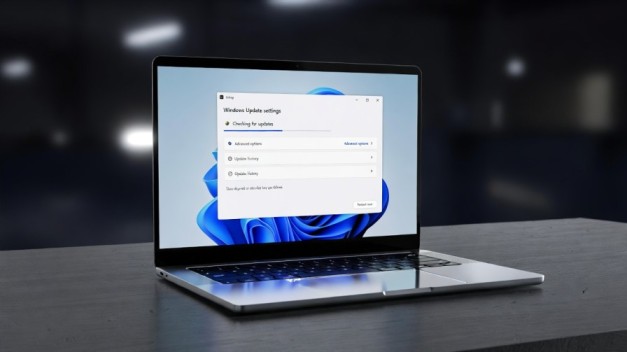
How to Update Drivers Automatically in Windows (Complete 2026 Guide)
Keeping your Windows PC running smoothly is not about installing more apps or upgrading hardware first. It begins with something far more foundational: your drivers. If you’ve been wondering how to update drivers automatically in Windows, you’re already ahead of most users.
Drivers are the invisible translators between your hardware and your operating system. When they’re outdated, your system slows down, crashes unexpectedly, or refuses to recognize devices. When they’re optimized, everything just works.
This guide delivers a definitive, expert-led breakdown of how to update drivers automatically in Windows—securely, efficiently, and without risking system stability.
Why Updating Drivers Automatically in Windows Is Critical for System Stability
Here’s the professional truth: most PC issues blamed on “Windows problems” are actually driver problems.
Drivers control:
-
Graphics cards
-
Network adapters
-
Sound devices
-
Motherboard chipsets
-
Printers and peripherals
When manufacturers release updates, they typically fix:
-
Security vulnerabilities
-
Performance bottlenecks
-
Compatibility issues after Windows updates
-
System crashes (BSOD errors)
For example, graphics drivers from companies like NVIDIA or AMD often improve gaming performance and fix stability bugs. Network drivers from Intel may resolve connection drop issues.
Automatic driver updates reduce manual errors and ensure you’re always running optimized versions.
Method 1: How to Update Drivers Automatically in Windows Using Windows Update
The safest and most reliable method to update drivers automatically in Windows is through the built-in Windows Update system.
This method ensures drivers are digitally signed and tested for compatibility.
Step-by-Step: Windows 11
-
Press Windows + I to open Settings.
-
Click Windows Update.
-
Select Advanced options.
-
Click Optional updates.
-
Expand Driver updates.
-
Select available updates and install.
Windows 11 automatically fetches approved drivers from the Microsoft driver catalog.
Step-by-Step: Windows 10
-
Open Settings
-
Go to Update & Security
-
Click Windows Update
-
Select View optional updates
-
Install available driver updates
Microsoft distributes these drivers via the Windows Update system, which validates compatibility with your system build.
Pro Tip: Always restart your computer after installing driver updates—even if not prompted.
Method 2: Use Device Manager to Update Drivers Automatically
If Windows Update doesn’t detect a newer driver, Device Manager offers a manual-triggered automatic search.
Device Manager connects to Microsoft’s database to search for updated drivers.
How to Use It
-
Right-click the Start button
-
Select Device Manager
-
Expand a device category
-
Right-click a device
-
Click Update driver
-
Select Search automatically for drivers
This method works best for:
-
Display adapters
-
Network adapters
-
Bluetooth drivers
-
Audio devices
While effective, Device Manager depends on Microsoft’s catalog, which may not always host the latest manufacturer release.
Method 3: Enable Automatic Driver Updates via Advanced System Settings
For users who want Windows to manage driver updates silently in the background, enabling automatic device installation settings is essential.
How to Enable Automatic Driver Installation
-
Press Windows + R
-
Type
sysdm.cpl -
Go to the Hardware tab
-
Click Device Installation Settings
-
Select Yes (recommended)
This ensures Windows automatically downloads manufacturer apps and custom icons for devices.
It’s a small setting—but it prevents missing drivers after hardware upgrades.
Method 4: How to Update Drivers Automatically in Windows Using Manufacturer Software
Sometimes, Microsoft-approved drivers are stable but not the newest.
Hardware manufacturers often provide their own update utilities.
Graphics Drivers
These tools detect your GPU model and install optimized updates automatically.
Motherboard & System Drivers
Brands like ASUS, MSI, and Dell offer automatic update utilities for BIOS and chipset drivers.
Expert Insight: For gaming or creative workstations, manufacturer software often provides performance gains not yet available through Windows Update.
Should You Use Third-Party Driver Updater Software?
This is where skepticism matters.
There are many driver updater tools claiming to “update 30 drivers in one click.” Some are legitimate. Many are not.
Risks:
-
Installing incorrect drivers
-
Bundled malware
-
Overwriting stable drivers unnecessarily
-
Paid subscriptions for free functionality
Microsoft does not officially recommend third-party driver updater tools. According to official guidance from Microsoft, Windows Update should remain your primary driver source.
If you choose third-party tools, verify:
-
The company reputation
-
Verified digital signatures
-
Transparent privacy policies
When in doubt, stick with official manufacturer utilities.
How to Create a Restore Point Before Updating Drivers
Before performing major driver updates, especially graphics or chipset drivers, create a restore point.
Steps:
-
Search Create a restore point in Start
-
Click System Protection
-
Select your system drive
-
Click Create
-
Name the restore point
If a driver causes instability, you can revert instantly.
Professionals never update drivers blindly.
Common Mistakes When Updating Drivers Automatically in Windows
Even experienced users make these errors.
1. Updating Everything at Once
Not every driver needs updating. If your system is stable, unnecessary updates can introduce bugs.
2. Ignoring Windows Version Compatibility
Drivers must match your Windows build (Windows 10 vs Windows 11).
3. Downloading from Random Websites
Never install drivers from unofficial sites. Always use:
-
Windows Update
-
Official manufacturer website
-
Trusted OEM utilities
4. Skipping Reboots
Many drivers don’t activate until restart.
How Often Should You Update Drivers?
Here’s a strategic approach:
-
Graphics Drivers: Monthly (especially for gamers)
-
Network Drivers: Only if experiencing issues
-
Chipset Drivers: After major Windows updates
-
Printers & Peripherals: When compatibility problems arise
Automatic Windows updates handle most background driver updates efficiently.
Windows 10 vs Windows 11: Is Automatic Driver Updating Different?
Functionally, both systems rely on the same Microsoft driver catalog.
However:
-
Windows 11 integrates driver updates more cleanly under Advanced Options
-
Windows 10 sometimes separates them under Optional Updates
The process remains nearly identical.
If you’re running the latest Windows builds, automatic driver management is significantly improved compared to older versions.
Security Considerations When Updating Drivers Automatically
Drivers operate at a deep system level.
Outdated drivers can:
-
Expose vulnerabilities
-
Cause kernel-level crashes
-
Allow hardware-based exploits
Microsoft and hardware vendors patch these regularly.
Keeping automatic driver updates enabled strengthens your system’s defense layer.
The Smart Way to Update Drivers Automatically in Windows
Understanding how to update drivers automatically in Windows is not about chasing the newest version blindly. It’s about maintaining balance between stability, performance, and security.
For most users, the safest method is:
-
Enable automatic updates via Windows Update
-
Check Optional Driver Updates periodically
-
Use official manufacturer software for GPUs and critical hardware
-
Create restore points before major updates
Avoid shady driver updater tools. Stick with trusted sources.
When managed properly, automatic driver updates transform your PC from unstable to consistently optimized—without manual effort.
In 2026 and beyond, intelligent driver management isn’t optional. It’s foundational to system health.
Frequently Asked Questions (FAQ)
1. Is it safe to update drivers automatically in Windows?
Yes, it is safe to update drivers automatically in Windows when using official sources like Windows Update or manufacturer software. Microsoft verifies driver compatibility before distribution, reducing the risk of system instability. However, creating a restore point before major updates is always recommended.
2. Does Windows 11 update drivers automatically by default?
Yes. Windows 11 automatically installs many drivers through Windows Update. However, some optional driver updates must be manually selected under Advanced Options → Optional Updates.
3. How often should I update drivers automatically in Windows?
You do not need to update drivers weekly. Windows automatically handles critical updates. For performance-sensitive hardware like graphics cards, checking once a month is sufficient. For other devices, update only if you experience issues.
4. What happens if a driver update causes problems?
If a driver update creates instability, you can:
-
Use the Driver Rollback feature in Device Manager
-
Restore your system using a previously created restore point
Windows keeps older driver versions available for rollback in most cases.
5. Can outdated drivers slow down my PC?
Yes. Outdated drivers can cause:
-
Reduced hardware performance
-
System crashes (BSOD)
-
Compatibility issues after Windows updates
-
Network connectivity problems
Keeping drivers updated improves stability and security.
6. Should I use third-party driver updater software?
Generally, no. Windows Update and official manufacturer tools are safer. Many third-party tools install unnecessary or incorrect drivers and may include bundled software.
7. What is the safest way to update drivers automatically in Windows?
The safest method is:
-
Enable automatic updates via Windows Update
-
Check Optional Driver Updates periodically
-
Use official GPU software (like NVIDIA or AMD utilities)
-
Create a restore point before major updates