How to Fix Overheating Laptop: The Definitive Performance Rescue Guide
Laptop overheating is not just an inconvenience. It is a silent performance killer.
If you are searching for how to fix overheating laptop problems, you are likely experiencing sudden shutdowns, loud fan noise, lag during multitasking, or a keyboard that feels uncomfortably hot. Left unchecked, excessive heat can damage your CPU, GPU, motherboard, and even shorten your device’s lifespan dramatically.
The good news? Most overheating issues are fixable without replacing your machine.
This comprehensive guide explains how to fix overheating laptop issues from the inside out—covering hardware, software, airflow, and advanced thermal management strategies.
Why Laptop Overheating Happens (Understanding the Root Cause)
Before learning how to fix overheating laptop problems, you must understand why they occur.
A laptop is essentially a compact heat engine. Your processor and graphics chip generate heat while performing calculations. Unlike desktops, laptops have limited airflow due to their thin design.
When cooling systems fail to dissipate heat effectively, temperatures spike.
According to documentation from Intel, modern CPUs automatically throttle performance when internal temperatures exceed safe thresholds. This “thermal throttling” protects hardware but reduces speed significantly.
Common causes include:
-
Dust blocking air vents
-
Failing cooling fans
-
Dried thermal paste
-
Heavy background applications
-
Malware consuming CPU power
-
High ambient room temperature
Now, let’s break down how to fix overheating laptop issues step by step.
1: Check Internal Temperature Before You Act
The first step in how to fix overheating laptop problems is diagnosing the actual temperature.
Pro Tip: Measure Before Repairing
Use monitoring tools like:
Safe CPU temperatures:
-
Idle: 40–55°C
-
Under Load: 70–85°C
-
Critical: 90°C+
If your laptop consistently runs above 90°C, immediate action is required.
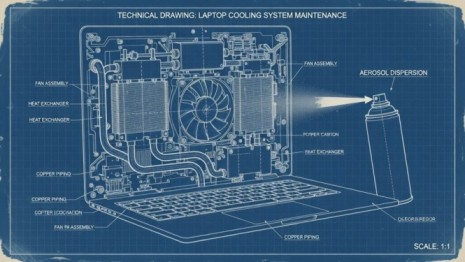
2: Clean Dust from Fans and Air Vents
Dust is the number one cause of overheating.
Why Cleaning Instantly Reduces Temperature
Dust acts like insulation. It traps heat inside the cooling system and blocks airflow.
To fix this:
-
Shut down your laptop.
-
Disconnect power.
-
Use compressed air to blow dust out of side and bottom vents.
-
For deeper cleaning, open the back panel carefully (if comfortable).
Even a basic external cleaning can reduce temperatures by 10–20°C.
3: Improve Airflow Around Your Laptop
Many users unknowingly suffocate their laptop.
The Airflow Rule: Never Block the Base
Placing your device on a bed or pillow blocks intake vents. Heat builds up rapidly.
Instead:
-
Use a flat hard surface.
-
Elevate the rear slightly.
-
Consider a cooling pad.
Cooling pads with dual fans increase airflow and reduce thermal pressure during gaming or heavy workloads.
4: Reduce CPU Usage from Background Applications
If cleaning does not fully solve the issue, software may be the culprit.
Hidden Apps Often Cause Overheating
Press Ctrl + Shift + Esc to open Task Manager.
Look for:
-
High CPU usage apps
-
Unknown processes
-
Startup programs running unnecessarily
Disable unnecessary startup programs.
Windows power settings can also help. Switch to “Balanced” mode instead of “High Performance” to reduce CPU heat output.
5: Update Drivers and BIOS
Outdated firmware can mismanage thermal controls.
Why BIOS Updates Matter
Manufacturers release BIOS updates to optimize fan curves and thermal efficiency.
Visit your laptop manufacturer’s official website and download:
-
Latest BIOS
-
Updated chipset drivers
-
Graphics drivers
Graphics drivers from NVIDIA or AMD often include thermal performance improvements.
Always update carefully, following official instructions.
6: Replace Thermal Paste (Advanced Fix)
If your laptop is over two years old, dried thermal paste is likely reducing cooling efficiency.
What Thermal Paste Does
Thermal paste fills microscopic gaps between the CPU and heatsink, allowing heat to transfer efficiently.
Over time, it dries out.
Replacing it can dramatically reduce temperatures by 10–25°C.
Use high-quality thermal compounds and apply a pea-sized amount only.
This step requires technical skill. If unsure, consult a technician.
7: Scan for Malware
Malware can silently max out CPU usage.
Use:
Full system scans can reveal hidden background processes consuming processing power.
High CPU equals high heat.
8: Undervolt Your CPU (Power Users Only)
Advanced users can reduce heat without sacrificing performance.
What Is Undervolting?
Undervolting reduces voltage supplied to the CPU, lowering heat output.
Tools like Intel XTU allow voltage adjustment for supported processors.
However, improper undervolting can cause instability. Proceed carefully.
9: Reset or Reinstall Windows
If overheating started after software changes, a clean OS installation may help.
Sometimes driver conflicts or corrupted system files cause abnormal CPU spikes.
A fresh installation restores factory-level efficiency.
When Overheating Means Hardware Failure
Sometimes overheating is not fixable at home.
Signs of serious hardware failure:
-
Fan making grinding noise
-
Laptop shutting down instantly
-
Burning smell
-
Visible battery swelling
Battery issues should be addressed immediately.
According to safety guidance from Consumer Product Safety Commission, lithium-ion batteries exposed to excessive heat can become hazardous.
If you suspect battery damage, stop using the device and consult a certified repair center.
Long-Term Prevention Strategy
Fixing the issue once is not enough.
To prevent future overheating:
-
Clean vents every 3–6 months.
-
Avoid gaming on soft surfaces.
-
Keep room temperature cool.
-
Use power-efficient modes.
-
Avoid constant 100% CPU load.
Heat management is a habit, not a one-time fix.
Frequently Asked Questions (FAQ)
How do I know if my laptop is overheating?
Symptoms include loud fans, lagging performance, sudden shutdowns, and hot keyboard surfaces. Monitoring software confirms exact temperatures.
Can overheating permanently damage a laptop?
Yes. Continuous high temperatures degrade CPU lifespan, damage the motherboard, and reduce battery health.
Does a cooling pad really help?
Yes. Cooling pads improve airflow and can reduce temperatures by 5–15°C depending on usage.
Is it safe to open my laptop for cleaning?
If you are comfortable and follow manufacturer guidelines, yes. Otherwise, consult a professional.
How often should thermal paste be replaced?
Every 2–3 years for average users. Gamers may require earlier replacement.
How to Fix Overheating Laptop Effectively
Learning how to fix overheating laptop problems is about understanding heat as a system-wide issue.
It is rarely just one cause.
Dust, airflow, software load, firmware updates, and thermal paste all play a role. By following this structured approach—diagnose, clean, optimize, and upgrade—you can restore performance and extend your laptop’s lifespan significantly.
Overheating is not a death sentence for your device. It is a warning.
Treat it early, and your laptop will reward you with years of reliable performance.