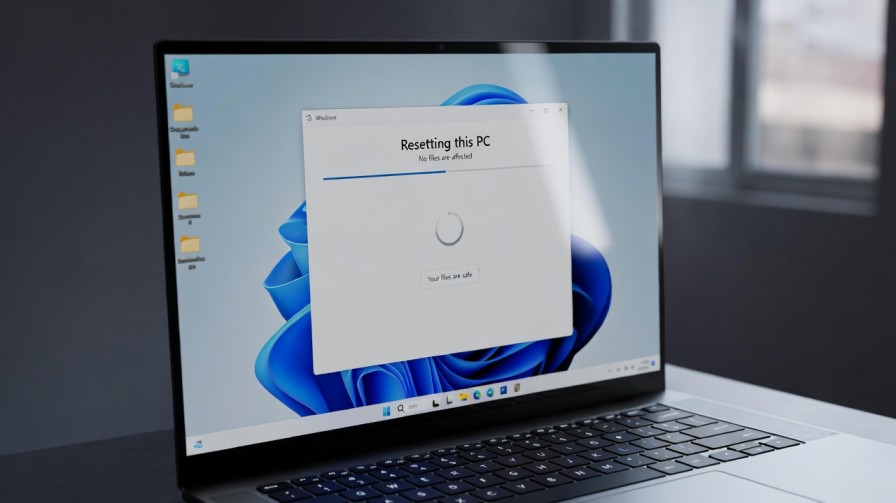
How to Reset Windows 11 Without Losing Files: A Complete Guide
Resetting your Windows 11 system can feel like a daunting task, especially when you want to preserve your personal files. Unlike older Windows versions, Windows 11 introduces streamlined reset options that maintain your documents, pictures, and other personal data while repairing system files. This article provides a step-by-step roadmap for achieving a full system reset safely, minimizing downtime, and avoiding data loss.
Whether your system is sluggish, plagued with errors, or experiencing software conflicts, knowing how to reset Windows 11 without losing files ensures your PC returns to optimal performance without wiping your personal work.
Why Resetting Windows 11 Is Necessary
Resetting Windows 11 is more than just a troubleshooting tool—it’s a system refresh. Over time, cluttered system files, corrupted updates, and conflicting software can degrade performance. A reset restores the operating system to a near-factory state without removing your files, which is essential for:
-
Fixing Persistent Errors: Windows freezes, crashes, or update loops.
-
Performance Optimization: Slow boot times and lagging applications.
-
Security Restoration: Removing malware or system vulnerabilities.
Pro Tip: Always choose “Keep my files” unless you need a completely clean slate. This preserves your personal data while restoring Windows core files.
Prepare Your System
Before initiating a reset, preparation is key:
-
Backup Critical Data: Although the “Keep my files” option protects documents, photos, and other user files, create an additional backup on an external drive or cloud storage like OneDrive.
-
Check for Updates: Install the latest Windows updates to ensure the reset runs smoothly. Navigate to Settings → Windows Update → Check for updates.
-
Disconnect Peripherals: Remove unnecessary external devices to prevent hardware conflicts during the reset process.
Access the Windows 11 Reset Feature
Windows 11 makes the reset process accessible from within Settings:
-
Press Windows + I to open Settings.
-
Go to System → Recovery.
-
Under Recovery Options, locate Reset this PC and click Reset PC.
Here, Windows offers two options:
-
Keep my files: Removes apps and settings but retains personal files.
-
Remove everything: Complete wipe of files, apps, and settings.
For most users, Keep my files is the recommended choice.
Choose a Reinstallation Method
Windows 11 allows two reinstallation methods:
-
Cloud Download: Downloads the latest Windows 11 version from Microsoft servers (~4GB). Ensures the most up-to-date OS.
-
Local Reinstall: Uses existing system files. Faster, but may not fix corrupted OS files if present.
Expert Insight: If your system issues stem from corrupted files, Cloud Download is more reliable.
Follow the On-Screen Prompts
After selecting Keep my files and your reinstall method:
-
Review apps that will be removed—Windows will display a list.
-
Confirm your selection and click Next.
-
Windows will prompt for a final confirmation. Click Reset to begin.
The system will reboot several times. This process may take 30–60 minutes depending on hardware and reinstallation method.
Post-Reset Steps
After Windows 11 finishes resetting:
-
Reinstall Removed Apps: Use the pre-reset app list to restore software.
-
Check System Settings: Verify personalized settings like display, network, and privacy options.
-
Install Updates: Even after reset, check Settings → Windows Update for remaining patches.
-
Run Disk Cleanup: Remove temporary files left by the reset process.
Troubleshooting Common Reset Issues
Even experienced users may encounter hurdles:
-
Reset Stuck at Certain Percentage: Restart in Safe Mode and attempt reset again.
-
Error Messages (0x80070003 / 0x8007007f): Run sfc /scannow and DISM /Online /Cleanup-Image /RestoreHealth in Command Prompt.
-
Cloud Download Fails: Check network stability and temporarily disable firewalls or VPNs.
Tips for Maintaining a Healthy Windows 11
-
Regular Backups: Even with “Keep my files,” unexpected failures can occur. Use OneDrive or an external drive.
-
Optimize Storage: Remove unused apps and files through Settings → System → Storage.
-
Update Drivers: Use Device Manager to update drivers post-reset.
-
Monitor Startup Programs: Reduce boot-time load for faster performance.
Resetting Windows 11 without losing files is a practical solution for troubleshooting, optimizing performance, and maintaining system security. By carefully following this guide, you can restore your PC while ensuring all essential data remains intact.
Frequently Asked Questions (FAQ)
1. Will resetting Windows 11 delete my personal files?
No. Choosing the Keep my files option preserves documents, pictures, and other personal data while removing apps and settings. Always back up critical files as a precaution.
2. What is the difference between “Cloud Download” and “Local Reinstall”?
Cloud Download fetches the latest Windows version from Microsoft servers, ideal for fixing corrupted system files. Local Reinstall uses existing files on your device and is faster but may not fix all issues.
3. How long does a Windows 11 reset take?
The process usually takes 30–60 minutes, depending on your system’s hardware and the reinstallation method chosen.
4. Can I stop the reset once it has started?
Interrupting a reset can cause system corruption. It’s best to let the process finish. If stuck, restart in Safe Mode and try again.
5. Do I need to reinstall my apps after a reset?
Yes. All non-Microsoft apps will be removed during the reset. Windows will provide a list of removed apps to help you reinstall them.
Resetting Windows 11 without losing files is an effective way to troubleshoot performance issues, remove software conflicts, and restore system stability without compromising your personal data. By carefully choosing the Keep my files option, selecting the appropriate reinstallation method, and following the step-by-step instructions outlined above, users can confidently refresh their PCs. Post-reset maintenance, such as reinstalling apps, updating drivers, and monitoring storage, ensures that your system remains fast, secure, and reliable.