How to Fix iPhone Overheating After Update: The Complete Expert Guide
Software updates are supposed to improve your iPhone — not turn it into a pocket heater.
Yet thousands of users report sudden temperature spikes, battery drain, and performance throttling after installing a new iOS version. If you’re searching for how to fix iPhone overheating after update, you’re likely experiencing one of three issues: background indexing overload, battery calibration errors, or system-level conflicts triggered by the update.
The good news? This is almost always fixable — and rarely a hardware defect.
In this deep-dive guide, we’ll walk through exactly how to fix iPhone overheating after update using Apple-approved troubleshooting steps, system optimization techniques, and performance recovery strategies.
Why iPhone Overheats After an Update (Understanding the Root Cause)
Before learning how to fix iPhone overheating after update, you need to understand why it happens.
A major iOS release from Apple — such as iOS 17 or iOS 18 — doesn’t just change visual features. It restructures background processes. After installation, your device performs:
-
Spotlight reindexing
-
Photos facial recognition scanning
-
App re-optimization
-
iCloud resynchronization
-
Security database rebuilding
According to Apple’s official support documentation, these processes can temporarily increase CPU load and battery consumption. That means heat.
The critical question isn’t “Why is my iPhone hot?”
It’s: “Is this temporary or persistent?”
Let’s break down the solutions.
Wait 24–48 Hours (The Most Overlooked Fix)
The first and most important step in how to fix iPhone overheating after update is patience.
Post-update indexing can last up to 48 hours. During this period:
-
Battery drains faster
-
Device feels warm
-
Performance fluctuates
If the overheating started immediately after updating, wait two full charging cycles before taking drastic action.
Pro Tip:
Plug the phone in overnight with Wi-Fi enabled. Indexing completes faster when connected to power.
If overheating continues beyond 48 hours, move to the next steps.
Check Battery Health & Background Usage
Persistent overheating often points to battery strain.
Go to:
Settings → Battery → Battery Health & Charging
If maximum capacity is below 80%, the battery may struggle under new system demands.
Then check:
Settings → Battery → Battery Usage by App
Look for apps consuming abnormal background activity.
Common culprits:
-
Social media apps
-
Location-heavy apps
-
Video streaming platforms
-
VPN services
Delete or reinstall problematic apps.
If battery health is low, consider replacement through Apple or an authorized service provider.
Disable Background App Refresh (Temporarily)
One powerful tactic in how to fix iPhone overheating after update is reducing background load.
Go to:
Settings → General → Background App Refresh
Turn it off completely for 24 hours.
This isolates whether background activity is the heat trigger.
If overheating improves, re-enable selectively for essential apps only.
Update All Apps Immediately
Outdated apps conflict with new iOS frameworks.
Open the App Store and update every installed app.
Developers frequently push compatibility patches after major iOS launches. Running older builds can cause CPU spikes and thermal load.
This step alone resolves overheating in many cases.
Reset All Settings (Without Data Loss)
When searching how to fix iPhone overheating after update, many users skip this critical step.
Go to:
Settings → General → Transfer or Reset iPhone → Reset → Reset All Settings
This does NOT delete your photos, apps, or data.
It resets:
-
Wi-Fi networks
-
Bluetooth pairings
-
Location permissions
-
System configurations
Corrupted system settings after an update are a common overheating trigger.
Turn Off Location Services (Testing Phase)
Location services continuously ping GPS, Wi-Fi, and cellular signals.
After updates, location permissions sometimes reset incorrectly.
Go to:
Settings → Privacy & Security → Location Services
Turn it off temporarily.
If temperature stabilizes, re-enable selectively for:
-
Maps
-
Weather
-
Ride-sharing apps
Avoid allowing “Always” access unless absolutely necessary.
Force Restart the iPhone
A force restart clears temporary memory loops.
For most modern iPhones:
-
Press Volume Up
-
Press Volume Down
-
Hold Side Button until Apple logo appears
This refreshes system processes without erasing data.
Free Up Storage Space
Low storage increases thermal load.
Go to:
Settings → General → iPhone Storage
If storage is above 90% full, performance drops and heat rises.
Delete:
-
Old videos
-
Unused apps
-
Duplicate photos
Aim to keep at least 15–20% storage free.
Disable iCloud Photo Sync (If Necessary)
iCloud Photo sync after updates can aggressively upload and scan media.
Go to:
Settings → Apple ID → iCloud → Photos
Temporarily turn off sync for 24 hours.
If overheating stops, re-enable later when connected to Wi-Fi and power.
Perform a Clean iOS Restore (Advanced Solution)
If none of the above fixes work, a clean restore may be required.
This is the final method in how to fix iPhone overheating after update.
Steps:
-
Back up your device
-
Connect to a Mac or PC
-
Use Finder or iTunes
-
Choose “Restore iPhone”
Do NOT restore from backup immediately.
Set it up as new first and monitor heat behavior.
If overheating disappears, your backup likely contained corrupted settings.
When Overheating Signals Hardware Damage
Rarely, overheating indicates:
-
Battery swelling
-
Charging port damage
-
Logic board failure
Warning signs:
-
iPhone shuts down unexpectedly
-
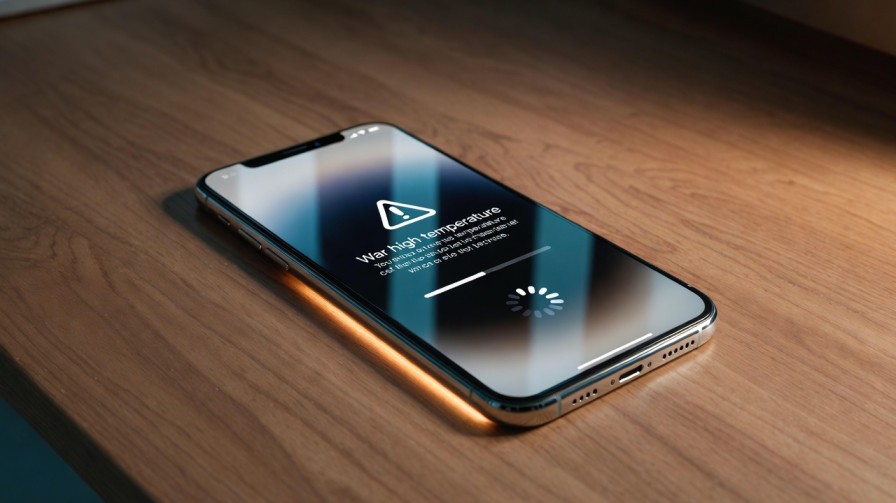
Temperature warning screen appears
-
Back panel feels extremely hot
In these cases, visit Apple Support or an authorized service center.
Does iPhone Overheating Damage the Device?
Short bursts of heat are normal.
However, sustained high temperatures can:
-
Degrade battery lifespan
-
Reduce performance
-
Trigger thermal throttling
Apple devices include automatic temperature management to prevent permanent damage.
Still, chronic overheating should not be ignored.
Preventing iPhone Overheating After Future Updates
The smartest strategy is prevention.
Before updating:
-
Ensure battery health is above 85%
-
Free up storage
-
Update all apps first
-
Connect to stable Wi-Fi
-
Install updates overnight
Avoid using the device heavily immediately after updating.
Let the system stabilize.
Frequently Asked Questions
Why is my iPhone hot but not charging?
Post-update indexing or high background activity is likely the cause.
Can a software update permanently damage battery health?
No. Updates may temporarily increase drain but do not permanently damage healthy batteries.
Should I downgrade iOS to fix overheating?
Apple does not officially recommend downgrading. It’s rarely necessary.
How to Fix iPhone Overheating After Update
If your device became hot after installing a new iOS version, don’t panic.
In 90% of cases, the issue is temporary background reindexing. For persistent problems, follow this hierarchy:
-
Wait 48 hours
-
Update apps
-
Reset settings
-
Reduce background activity
-
Clean restore if required
Understanding how to fix iPhone overheating after update isn’t about random tweaks — it’s about diagnosing system load intelligently.
Handled properly, your iPhone will return to normal performance without hardware repair.
For more in-depth mobile optimization guides, explore our Technology & AI section on howasked.com.
How to Stop Spam Calls on Android
How to Stop Robocalls on iPhone